
I Turned KDE Connect Into a Remote Control for My Windows PC
How I turned KDE Connect into a verified remote-control and monitoring setup for Windows using Tailscale, PowerShell, and Task Scheduler.
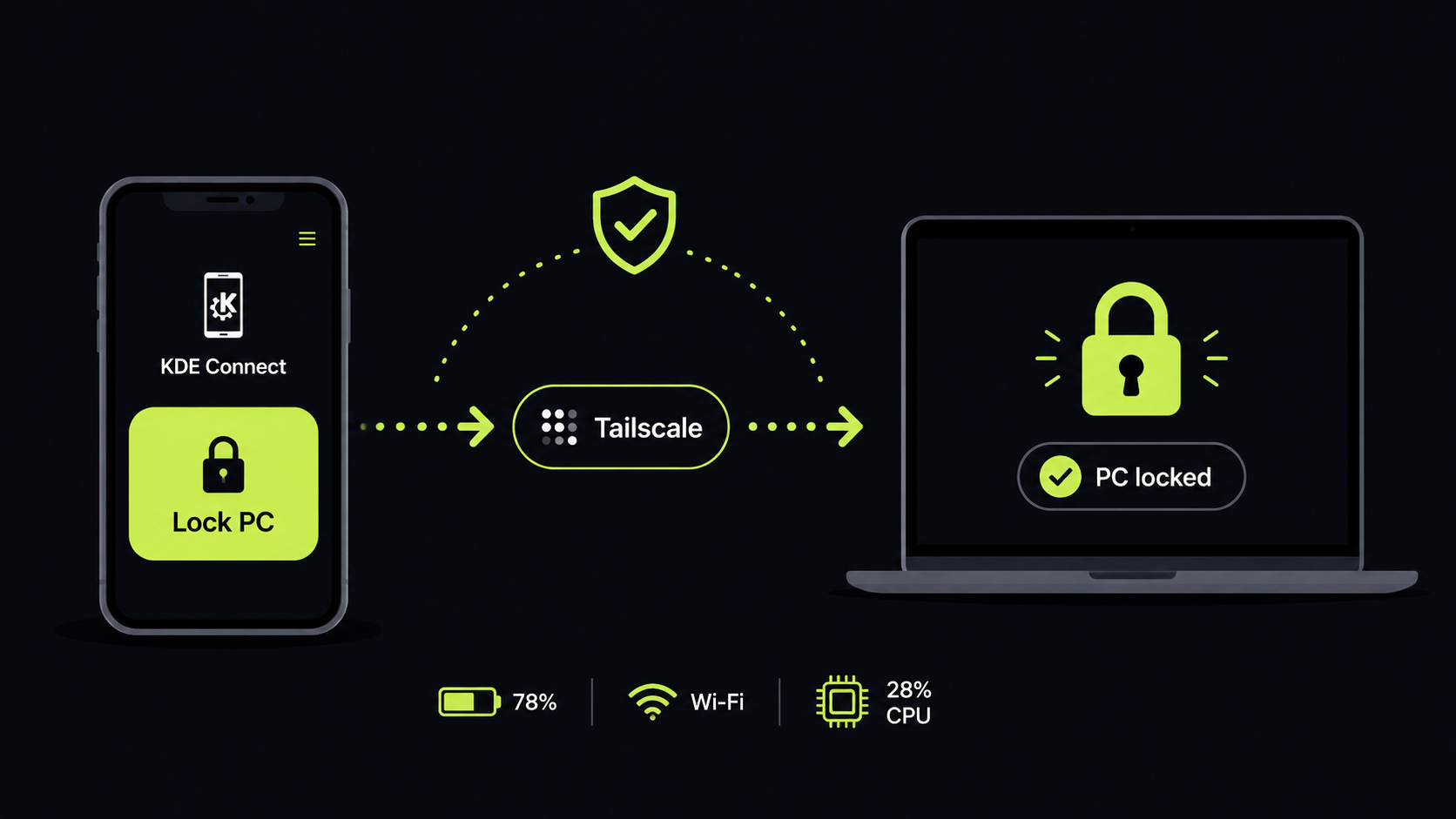
I Turned KDE Connect Into a Remote Control for My Windows PC
This whole setup started because of one very specific thought:
Wait. Did I lock my PC?
If you have ever left home or the office and suddenly remembered your computer sitting there with the screen unlocked, you know how annoying that question is.
I already had KDE Connect installed, so my first idea was simple: add a remote lock command and call it done.
That worked.
Then I realized I had no way to know whether the command actually reached the computer.
So I added a confirmation notification.
Then I added Tailscale so the same setup would work while my phone was on 5G and the PC was on a completely different network.
After that came restart, shutdown, status reports, battery warnings, Wi-Fi monitoring, disk alerts, and CPU/RAM checks.
A tiny convenience feature slowly turned into a lightweight remote control and monitoring system for my Windows PC.
This post is the complete version of the setup. You should be able to start with a normal KDE Connect installation and build the whole thing from here without needing any other scripts.
What we are building#
The finished setup can:
- lock the PC remotely
- confirm when Windows actually enters the locked state
- notify the phone when the PC is unlocked
- restart or shut down the PC with a 30-second safety delay
- cancel a pending restart or shutdown
- send a quick PC status report
- report when the PC comes online after login
- distinguish a remote restart or shutdown from a normal login
- warn when the charger is connected or disconnected
- warn when the battery drops below 20 percent or 10 percent
- detect Wi-Fi disconnects and recovery
- warn about low disk space
- warn about sustained high RAM or CPU usage
- queue notifications while the phone is unreachable and send them later
The stack is fairly small:
- KDE Connect handles remote commands and phone notifications
- Tailscale makes the phone and PC reachable from different networks
- PowerShell handles the Windows-side automation
- Task Scheduler reacts to Windows events and keeps the monitoring agent running
The architecture looks roughly like this:
Android phone
     |
     | 5G / Wi-Fi
     |
 Tailscale
     |
 Windows PC
     |
 KDE Connect
     |
 PowerShell + Task Scheduler
The important design choice is that KDE Connect itself is not exposed directly to the public internet.
1. Install and test KDE Connect#
Install KDE Connect on both the Windows PC and Android phone.
Pair them normally while both devices are on the same local network.
Before doing anything else, make sure the normal KDE Connect features work. Ping, clipboard sharing, file transfer, and Run Commands are good tests.
On Windows, open PowerShell and run:
kdeconnect-cli -a --id-only
You should get a device ID similar to:
YOUR_PHONE_DEVICE_ID
Save that value. We will use it later when the PC needs to send notifications back to the phone.
The weird Qt warning on Windows#
On my Windows installation, kdeconnect-cli also printed this:
QEventDispatcherWin32::wakeUp: Failed to post a message (Invalid window handle.)
At first I assumed the command had failed.
It had not.
This still sent a notification to my phone:
kdeconnect-cli -d YOUR_PHONE_DEVICE_ID --ping-msg "Test notification"
The terminal complained, but the notification arrived.
So if you see that exact warning, verify the actual result before debugging it. In the scripts below I intentionally suppress that stderr noise.
2. Add Tailscale for remote access#
KDE Connect is already useful when both devices are on the same network. The goal here is to keep using it when the phone and PC are nowhere near each other.
Install Tailscale on both devices and sign into the same tailnet.
The PC will receive a Tailscale IP that usually looks like:
100.x.x.x
Open KDE Connect on Android, open the three-dot menu on the Devices screen, choose Add devices by IP, and enter the PC's Tailscale IP.
Test it properly#
Do not test this while both devices are still on the same Wi-Fi, because that proves nothing.
Use this test:
- Leave the Windows PC connected to Wi-Fi.
- Disable Wi-Fi on the phone.
- Switch the phone to 4G or 5G.
- Keep Tailscale enabled.
- Open KDE Connect and check whether the PC is reachable.
- Send a ping or run a harmless command.
If that works, KDE Connect is now usable outside the local network.
I keep Tailscale enabled without an exit node. In that configuration, normal internet traffic still uses my regular Wi-Fi or mobile connection, while traffic to my tailnet devices goes through Tailscale.
Conceptually:
Phone -> normal website
uses the normal internet connection.
This:
Phone -> Tailscale -> Windows PC
uses the private Tailscale connection.
If you also use another VPN on Android, your phone may only keep one VPN interface active at a time. In my case, enabling Proton VPN disconnects Tailscale. When I am done with Proton, I enable Tailscale again and KDE Connect continues working.
If KDE Connect cannot reach the PC through Tailscale#
First confirm that the phone can see the PC inside Tailscale.
If Tailscale connectivity itself works but KDE Connect still cannot connect, check Windows Defender Firewall and make sure KDE Connect is allowed. KDE Connect uses dynamic TCP and UDP ports in the 1714-1764 range.
Do not solve this by exposing those ports directly on your router. The whole point of using Tailscale here is to avoid putting KDE Connect directly on the public internet.
3. Create the script directory#
I keep the entire setup under:
C:\Scripts\KDEConnectRemote
Open PowerShell and create it:
New-Item -ItemType Directory -Force C:\Scripts\KDEConnectRemote
Everything below will live inside that folder.
4. Create the configuration file#
Create:
C:\Scripts\KDEConnectRemote\config.json
with:
{
  "DeviceId": "YOUR_PHONE_DEVICE_ID",
  "BatteryLowPercent": 20,
  "BatteryCriticalPercent": 10,
  "DiskLowGB": 15,
  "RamHighPercent": 90,
  "CpuHighPercent": 95,
  "SustainedMinutes": 5
}
Replace:
YOUR_PHONE_DEVICE_ID
with the device ID you got from:
kdeconnect-cli -a --id-only
The remaining values are monitoring thresholds. You can change them later without touching the monitoring script.
5. Create the notification helper#
This script is the common notification layer used by everything else.
Create:
C:\Scripts\KDEConnectRemote\Notify-KDE.ps1
with:
param(
    [Parameter(Mandatory = $true, Position = 0)]
    [string]$Message,

    [int]$WaitSeconds = 0,

    [switch]$NoQueue
)

$ErrorActionPreference = "Continue"

$Root = "C:\Scripts\KDEConnectRemote"
$Config = Get-Content (Join-Path $Root "config.json") -Raw | ConvertFrom-Json
$QueueFile = Join-Path $Root "notification-queue.ndjson"

$Cli = (Get-Command kdeconnect-cli.exe -ErrorAction SilentlyContinue).Source

if (-not $Cli) {
    $Fallback = "C:\Program Files\KDE Connect\bin\kdeconnect-cli.exe"

    if (Test-Path $Fallback) {
        $Cli = $Fallback
    }
}

if (-not $Cli) {
    exit 2
}

function Test-PhoneReachable {
    try {
        $Ids = @(
            & $Cli -a --id-only 2>$null |
            ForEach-Object { $_.Trim() }
        )

        return $Ids -contains [string]$Config.DeviceId
    }
    catch {
        return $false
    }
}

$Deadline = (Get-Date).AddSeconds(
    [Math]::Max(0, $WaitSeconds)
)

do {
    if (Test-PhoneReachable) {
        & $Cli -d $Config.DeviceId --ping-msg $Message 2>$null | Out-Null
        exit 0
    }

    if ((Get-Date) -ge $Deadline) {
        break
    }

    Start-Sleep -Seconds 2
}
while ($true)

if (-not $NoQueue) {
    $Item = [ordered]@{
        Time    = (Get-Date).ToString("o")
        Message = $Message
    } | ConvertTo-Json -Compress

    Add-Content -LiteralPath $QueueFile -Value $Item -Encoding UTF8
}

exit 1
The useful part here is the queue.
If the phone is temporarily unreachable because Tailscale is disabled or the PC has lost its network connection, the message is stored locally instead of disappearing.
Test the notification helper#
Run:
powershell.exe -NoProfile -ExecutionPolicy Bypass -File C:\Scripts\KDEConnectRemote\Notify-KDE.ps1 "Test notification"
The phone should receive:
Test notification
Do not continue until this works.
6. Create the notification queue flusher#
Create:
C:\Scripts\KDEConnectRemote\Flush-KDEQueue.ps1
with:
$ErrorActionPreference = "Continue"

$Root = "C:\Scripts\KDEConnectRemote"
$Config = Get-Content (Join-Path $Root "config.json") -Raw | ConvertFrom-Json
$QueueFile = Join-Path $Root "notification-queue.ndjson"

if (-not (Test-Path $QueueFile)) {
    exit 0
}

$Cli = (Get-Command kdeconnect-cli.exe -ErrorAction SilentlyContinue).Source

if (-not $Cli) {
    $Fallback = "C:\Program Files\KDE Connect\bin\kdeconnect-cli.exe"

    if (Test-Path $Fallback) {
        $Cli = $Fallback
    }
}

if (-not $Cli) {
    exit 2
}

try {
    $Ids = @(
        & $Cli -a --id-only 2>$null |
        ForEach-Object { $_.Trim() }
    )
}
catch {
    exit 1
}

if ($Ids -notcontains [string]$Config.DeviceId) {
    exit 1
}

$Lines = @(
    Get-Content -LiteralPath $QueueFile -ErrorAction SilentlyContinue
)

if ($Lines.Count -eq 0) {
    Remove-Item $QueueFile -Force -ErrorAction SilentlyContinue
    exit 0
}

Remove-Item $QueueFile -Force -ErrorAction SilentlyContinue

foreach ($Line in $Lines) {
    if ([string]::IsNullOrWhiteSpace($Line)) {
        continue
    }

    try {
        $Item = $Line | ConvertFrom-Json
        $Time = [datetime]::Parse([string]$Item.Time)
        $Age = (Get-Date) - $Time

        if ($Age.TotalMinutes -ge 2) {
            $Message = "$($Item.Message) (at $($Time.ToString('HH:mm')))"
        }
        else {
            $Message = [string]$Item.Message
        }

        & $Cli -d $Config.DeviceId --ping-msg $Message 2>$null | Out-Null

        Start-Sleep -Milliseconds 300
    }
    catch {}
}
If a notification sits in the queue for more than two minutes, the original time is included when it is finally delivered.
That is especially useful for network outages.
7. Create the lock and unlock notification script#
Create:
C:\Scripts\KDEConnectRemote\Event-Notify.ps1
with:
param(
    [Parameter(Mandatory = $true)]
    [ValidateSet("Locked", "Unlocked")]
    [string]$Event
)

$Root = "C:\Scripts\KDEConnectRemote"

switch ($Event) {
    "Locked" {
        $Message = "PC locked"
    }

    "Unlocked" {
        $Message = "PC unlocked"
    }
}

& (Join-Path $Root "Notify-KDE.ps1") $Message | Out-Null
This script does not decide when the PC is locked or unlocked. Windows will do that for us through Task Scheduler.
That distinction matters because the PC locked notification will be triggered by the real Windows workstation lock event.
8. Create the remote control script#
Create:
C:\Scripts\KDEConnectRemote\Remote-Control.ps1
with:
param(
    [Parameter(Mandatory = $true, Position = 0)]
    [ValidateSet(
        "Lock",
        "Shutdown30",
        "Restart30",
        "CancelPower",
        "Status"
    )]
    [string]$Action
)

$Root = "C:\Scripts\KDEConnectRemote"
$NotifyScript = Join-Path $Root "Notify-KDE.ps1"
$Marker = Join-Path $Root "power-action.json"

function Send-Notice {
    param([string]$Message)

    & $NotifyScript $Message | Out-Null
}

function Write-PowerMarker {
    param([string]$Type)

    [ordered]@{
        Action = $Type
        Time   = (Get-Date).ToString("o")
    } |
        ConvertTo-Json |
        Set-Content -LiteralPath $Marker -Encoding UTF8
}

switch ($Action) {
    "Lock" {
        rundll32.exe user32.dll,LockWorkStation
    }

    "Shutdown30" {
        shutdown.exe /s /t 30

        if ($LASTEXITCODE -eq 0) {
            Write-PowerMarker "shutdown"
            Send-Notice "PC will shut down in 30 seconds"
        }
        else {
            Send-Notice "Shutdown request failed"
        }
    }

    "Restart30" {
        shutdown.exe /r /t 30

        if ($LASTEXITCODE -eq 0) {
            Write-PowerMarker "restart"
            Send-Notice "PC will restart in 30 seconds"
        }
        else {
            Send-Notice "Restart request failed"
        }
    }

    "CancelPower" {
        shutdown.exe /a

        if ($LASTEXITCODE -eq 0) {
            Remove-Item -LiteralPath $Marker -Force -ErrorAction SilentlyContinue
            Send-Notice "Pending shutdown/restart cancelled"
        }
        else {
            Send-Notice "No pending shutdown/restart to cancel"
        }
    }

    "Status" {
        $Parts = New-Object System.Collections.Generic.List[string]

        try {
            $Battery = Get-CimInstance Win32_Battery -ErrorAction Stop |
                Select-Object -First 1

            if ($Battery) {
                $Parts.Add(
                    "Battery $($Battery.EstimatedChargeRemaining)%"
                )
            }
        }
        catch {}

        try {
            $OS = Get-CimInstance Win32_OperatingSystem

            $RamUsed = [math]::Round(
                (
                    (
                        $OS.TotalVisibleMemorySize -
                        $OS.FreePhysicalMemory
                    ) /
                    $OS.TotalVisibleMemorySize
                ) * 100
            )

            $Parts.Add("RAM $RamUsed%")

            $Uptime = (Get-Date) - $OS.LastBootUpTime

            if ($Uptime.TotalDays -ge 1) {
                $Parts.Add(
                    "Uptime $([math]::Floor($Uptime.TotalDays))d $($Uptime.Hours)h"
                )
            }
            else {
                $Parts.Add(
                    "Uptime $($Uptime.Hours)h $($Uptime.Minutes)m"
                )
            }
        }
        catch {}

        try {
            $Drive = Get-PSDrive C
            $FreeGB = [math]::Round($Drive.Free / 1GB, 1)

            $Parts.Add("C: $FreeGB GB free")
        }
        catch {}

        try {
            $WiFi = Get-NetAdapter -ErrorAction SilentlyContinue |
                Where-Object {
                    $_.Name -match "Wi-Fi|WLAN" -or
                    $_.InterfaceDescription -match "Wireless|802\.11"
                } |
                Select-Object -First 1

            if ($WiFi) {
                $Parts.Add("Wi-Fi $($WiFi.Status)")
            }
        }
        catch {}

        if ($Parts.Count -eq 0) {
            Send-Notice "PC is online"
        }
        else {
            Send-Notice (
                "PC online | " + ($Parts -join " | ")
            )
        }
    }
}
The shutdown and restart commands deliberately use a 30-second delay.
That gives you enough time to cancel an accidental press.
One warning: Windows can force applications to close when a timed shutdown reaches zero, so do not treat this as a safe way to preserve unsaved work.
9. Create the monitoring script#
Create:
C:\Scripts\KDEConnectRemote\Monitor-Once.ps1
with:
$Root = "C:\Scripts\KDEConnectRemote"
$Config = Get-Content (Join-Path $Root "config.json") -Raw | ConvertFrom-Json
$NotifyScript = Join-Path $Root "Notify-KDE.ps1"
$StateFile = Join-Path $Root "monitor-state.json"

function Send-Notice {
    param([string]$Message)

    & $NotifyScript $Message | Out-Null
}

$State = @{}

if (Test-Path $StateFile) {
    try {
        $Object = Get-Content $StateFile -Raw | ConvertFrom-Json

        foreach ($Property in $Object.PSObject.Properties) {
            $State[$Property.Name] = $Property.Value
        }
    }
    catch {}
}

function Get-State {
    param(
        [string]$Key,
        $Default
    )

    if ($State.ContainsKey($Key)) {
        return $State[$Key]
    }

    return $Default
}

# Try to deliver notifications that were queued while the phone
# or network was unavailable.
& (Join-Path $Root "Flush-KDEQueue.ps1") | Out-Null

# ---------------------------------------------------------
# Battery and charger
# ---------------------------------------------------------

try {
    $BatteryDevice = Get-CimInstance Win32_Battery -ErrorAction SilentlyContinue |
        Select-Object -First 1

    if ($BatteryDevice) {
        Add-Type -AssemblyName System.Windows.Forms -ErrorAction SilentlyContinue

        $Power = [System.Windows.Forms.SystemInformation]::PowerStatus
        $PowerLine = $Power.PowerLineStatus.ToString()
        $ACKnown = $PowerLine -ne "Unknown"
        $ACOnline = $PowerLine -eq "Online"
        $BatteryPercent = [int]$BatteryDevice.EstimatedChargeRemaining

        if ($ACKnown) {
            $PreviousAC = Get-State "acOnline" $ACOnline

            if ($PreviousAC -eq $true -and $ACOnline -eq $false) {
                Send-Notice "Charger disconnected"
            }
            elseif ($PreviousAC -eq $false -and $ACOnline -eq $true) {
                Send-Notice "Charger connected"
            }

            $State["acOnline"] = $ACOnline
        }

        $BatteryLow = [bool](
            Get-State "batteryLow" $false
        )

        $BatteryCritical = [bool](
            Get-State "batteryCritical" $false
        )

        if (
            -not $ACOnline -and
            $BatteryPercent -lt [int]$Config.BatteryCriticalPercent -and
            -not $BatteryCritical
        ) {
            Send-Notice "Battery critical: $BatteryPercent% remaining"

            $State["batteryCritical"] = $true
            $State["batteryLow"] = $true
        }
        elseif (
            -not $ACOnline -and
            $BatteryPercent -lt [int]$Config.BatteryLowPercent -and
            -not $BatteryLow
        ) {
            Send-Notice "Battery low: $BatteryPercent% remaining"

            $State["batteryLow"] = $true
        }

        if (
            $ACOnline -or
            $BatteryPercent -ge ([int]$Config.BatteryLowPercent + 5)
        ) {
            $State["batteryLow"] = $false
        }

        if (
            $ACOnline -or
            $BatteryPercent -ge ([int]$Config.BatteryCriticalPercent + 5)
        ) {
            $State["batteryCritical"] = $false
        }
    }
}
catch {}

# ---------------------------------------------------------
# Wi-Fi
# ---------------------------------------------------------

try {
    $WiFi = Get-NetAdapter -ErrorAction SilentlyContinue |
        Where-Object {
            $_.Name -match "Wi-Fi|WLAN" -or
            $_.InterfaceDescription -match "Wireless|802\.11"
        } |
        Select-Object -First 1

    if ($WiFi) {
        $WiFiUp = $WiFi.Status -eq "Up"
        $PreviousWiFi = Get-State "wifiUp" $WiFiUp

        if (
            $PreviousWiFi -eq $true -and
            $WiFiUp -eq $false
        ) {
            $State["wifiDownAt"] = (Get-Date).ToString("o")

            Send-Notice "Wi-Fi disconnected"
        }
        elseif (
            $PreviousWiFi -eq $false -and
            $WiFiUp -eq $true
        ) {
            $DisconnectedAt = Get-State "wifiDownAt" $null

            if ($DisconnectedAt) {
                try {
                    $DownDate = [datetime]::Parse(
                        [string]$DisconnectedAt
                    )

                    $Minutes = [math]::Max(
                        1,
                        [math]::Round(
                            ((Get-Date) - $DownDate).TotalMinutes
                        )
                    )

                    Send-Notice "Wi-Fi restored after $Minutes minute(s)"
                }
                catch {
                    Send-Notice "Wi-Fi restored"
                }
            }
            else {
                Send-Notice "Wi-Fi restored"
            }

            $State["wifiDownAt"] = $null
        }

        $State["wifiUp"] = $WiFiUp
    }
}
catch {}

# ---------------------------------------------------------
# Disk space
# ---------------------------------------------------------

try {
    $Drive = Get-PSDrive -Name C

    $FreeGB = [math]::Round(
        $Drive.Free / 1GB,
        1
    )

    $TotalGB = [math]::Round(
        ($Drive.Used + $Drive.Free) / 1GB,
        1
    )

    if ($TotalGB -gt 0) {
        $FreePercent = [math]::Round(
            ($FreeGB / $TotalGB) * 100
        )
    }
    else {
        $FreePercent = 100
    }

    $DiskLow = [bool](
        Get-State "diskLow" $false
    )

    if (
        (
            $FreeGB -lt [double]$Config.DiskLowGB -or
            $FreePercent -lt 10
        ) -and
        -not $DiskLow
    ) {
        Send-Notice "Low disk space: C: has $FreeGB GB free ($FreePercent%)"

        $State["diskLow"] = $true
    }
    elseif (
        $FreeGB -gt ([double]$Config.DiskLowGB + 5) -and
        $FreePercent -gt 12
    ) {
        $State["diskLow"] = $false
    }
}
catch {}

# ---------------------------------------------------------
# RAM
# ---------------------------------------------------------

try {
    $OS = Get-CimInstance Win32_OperatingSystem

    $RamPercent = [math]::Round(
        (
            (
                $OS.TotalVisibleMemorySize -
                $OS.FreePhysicalMemory
            ) /
            $OS.TotalVisibleMemorySize
        ) * 100
    )

    $RamCount = [int](
        Get-State "ramHighCount" 0
    )

    $RamAlerted = [bool](
        Get-State "ramAlerted" $false
    )

    if ($RamPercent -ge [int]$Config.RamHighPercent) {
        $RamCount++

        if (
            $RamCount -ge [int]$Config.SustainedMinutes -and
            -not $RamAlerted
        ) {
            Send-Notice "High RAM usage: $RamPercent%"
            $RamAlerted = $true
        }
    }
    else {
        $RamCount = 0

        if (
            $RamPercent -lt ([int]$Config.RamHighPercent - 10)
        ) {
            $RamAlerted = $false
        }
    }

    $State["ramHighCount"] = $RamCount
    $State["ramAlerted"] = $RamAlerted
}
catch {}

# ---------------------------------------------------------
# CPU
# ---------------------------------------------------------

try {
    $CpuAverage = (
        Get-CimInstance Win32_Processor |
        Measure-Object LoadPercentage -Average
    ).Average

    $CpuPercent = [math]::Round($CpuAverage)

    $CpuCount = [int](
        Get-State "cpuHighCount" 0
    )

    $CpuAlerted = [bool](
        Get-State "cpuAlerted" $false
    )

    if ($CpuPercent -ge [int]$Config.CpuHighPercent) {
        $CpuCount++

        if (
            $CpuCount -ge [int]$Config.SustainedMinutes -and
            -not $CpuAlerted
        ) {
            Send-Notice "High CPU usage: $CpuPercent%"
            $CpuAlerted = $true
        }
    }
    else {
        $CpuCount = 0

        if (
            $CpuPercent -lt ([int]$Config.CpuHighPercent - 15)
        ) {
            $CpuAlerted = $false
        }
    }

    $State["cpuHighCount"] = $CpuCount
    $State["cpuAlerted"] = $CpuAlerted
}
catch {}

$State |
    ConvertTo-Json -Depth 5 |
    Set-Content -LiteralPath $StateFile -Encoding UTF8

# Connectivity may have returned during this monitoring pass.
& (Join-Path $Root "Flush-KDEQueue.ps1") | Out-Null
The monitor intentionally remembers previous state.
That prevents things like a 19 percent battery from sending the same warning every minute.
The default thresholds from config.json mean:
- battery warning below 20 percent
- critical battery warning below 10 percent
- low disk warning below 15 GB or 10 percent free
- RAM warning at 90 percent
- CPU warning at 95 percent
- CPU and RAM must remain high for about five checks before alerting
Because the monitor will run once per minute, SustainedMinutes: 5 is roughly a five-minute sustained-load requirement.
10. Create the session agent#
Instead of creating a separate scheduled task for every one-minute health check, I use one small background PowerShell process.
It starts when I log in, sends an online notification, then runs the monitor once per minute.
Create:
C:\Scripts\KDEConnectRemote\Session-Agent.ps1
with:
$Root = "C:\Scripts\KDEConnectRemote"
$Marker = Join-Path $Root "power-action.json"
$NotifyScript = Join-Path $Root "Notify-KDE.ps1"

Start-Sleep -Seconds 8

$Message = "PC is online"

if (Test-Path $Marker) {
    try {
        $MarkerData = Get-Content $Marker -Raw | ConvertFrom-Json

        switch ([string]$MarkerData.Action) {
            "restart" {
                $Message = "PC restarted successfully"
            }

            "shutdown" {
                $Message = "PC started after shutdown"
            }
        }
    }
    catch {}

    Remove-Item -LiteralPath $Marker -Force -ErrorAction SilentlyContinue
}

& $NotifyScript $Message -WaitSeconds 60 | Out-Null

while ($true) {
    try {
        & (Join-Path $Root "Monitor-Once.ps1") | Out-Null
    }
    catch {}

    Start-Sleep -Seconds 60
}
There is one important limitation here.
The agent starts at user logon, not before Windows reaches the login screen. KDE Connect itself normally runs in the user's desktop session, so a restart confirmation may not arrive until you sign back into Windows.
For my setup, that is acceptable.
11. Run everything without flashing terminal windows#
If Task Scheduler launches PowerShell directly, Windows may briefly flash a terminal window when a task runs.
It is harmless, but it looks messy.
I use a tiny VBScript wrapper to launch the PowerShell scripts invisibly.
Create:
C:\Scripts\KDEConnectRemote\RunHidden.vbs
with:
Option Explicit

Dim shell, mode, root, cmd, q

root = "C:\Scripts\KDEConnectRemote\"
q = Chr(34)

Set shell = CreateObject("WScript.Shell")

If WScript.Arguments.Count = 0 Then
    WScript.Quit 1
End If

mode = LCase(WScript.Arguments(0))

Select Case mode

    Case "locked"
        cmd = "powershell.exe -NoProfile -NonInteractive -ExecutionPolicy Bypass -File " & _
              q & root & "Event-Notify.ps1" & q & " -Event Locked"

    Case "unlocked"
        cmd = "powershell.exe -NoProfile -NonInteractive -ExecutionPolicy Bypass -File " & _
              q & root & "Event-Notify.ps1" & q & " -Event Unlocked"

    Case "agent"
        cmd = "powershell.exe -NoProfile -NonInteractive -ExecutionPolicy Bypass -File " & _
              q & root & "Session-Agent.ps1" & q

    Case Else
        WScript.Quit 1

End Select

shell.Run cmd, 0, True
The second argument to shell.Run is 0, which hides the PowerShell window.
The final True makes the wrapper wait for the PowerShell process instead of immediately detaching from it. This lets Task Scheduler properly track the task.
12. Configure Task Scheduler
This is the event layer of the whole setup.
PowerShell contains the logic, but Task Scheduler tells Windows when that logic should run.
Open Task Scheduler:
taskschd.msc
Use Create Task, not Create Basic Task.
We are going to create three tasks:
KDE Remote - PC LockedKDE Remote - PC UnlockedKDE Remote - Session Agent
Task 1: PC locked#
Create a new task.
General#
Use:
Name:
KDE Remote - PC Locked
Select:
Run only when user is logged on
Run with highest privileges is not required.
Trigger#
Open Triggers -> New.
Set:
Begin the task:
On workstation lock
If Task Scheduler offers a user selection, use your Windows account rather than every user.
Make sure the trigger is enabled.
Action#
Open Actions -> New.
Choose:
Start a program
Program:
C:\Windows\System32\wscript.exe
Arguments:
"C:\Scripts\KDEConnectRemote\RunHidden.vbs" locked
Conditions#
Disable:
Start the task only if the computer is on AC power
This is important on laptops. Lock confirmation should not stop working just because the charger is disconnected.
Settings#
Keep the task enabled.
For:
If the task is already running
use:
Do not start a new instance
Save the task.
When Windows actually enters the locked state, this task runs Event-Notify.ps1, which sends:
PC locked
to the phone.
This is the confirmation we actually care about.
Task 2: PC unlocked#
Create another task.
General#
Name:
KDE Remote - PC Unlocked
Again select:
Run only when user is logged on
Trigger#
Use:
On workstation unlock
Action#
Program:
C:\Windows\System32\wscript.exe
Arguments:
"C:\Scripts\KDEConnectRemote\RunHidden.vbs" unlocked
Conditions#
Disable:
Start the task only if the computer is on AC power
Settings#
Use:
If the task is already running:
Do not start a new instance
Save it.
Now unlocking Windows sends:
PC unlocked
to the phone.
Task 3: Session Agent#
This task starts the long-running monitoring agent after you sign into Windows.
Create another task.
General#
Use:
Name:
KDE Remote - Session Agent
Select:
Run only when user is logged on
Trigger#
Create a trigger:
At log on
Choose your own Windows user account.
Action#
Program:
C:\Windows\System32\wscript.exe
Arguments:
"C:\Scripts\KDEConnectRemote\RunHidden.vbs" agent
Conditions#
Disable both:
Start the task only if the computer is on AC power
and:
Stop if the computer switches to battery power
Otherwise Windows can do something impressively stupid: stop the battery monitoring process because the laptop switched to battery power.
Settings#
Use:
If the task is already running:
Do not start a new instance
Most importantly, disable:
Stop the task if it runs longer than:
The Session Agent is supposed to remain alive for the entire login session. If Task Scheduler has a three-day runtime limit enabled, it will eventually kill the monitor for no useful reason.
Save the task.
Start the agent without logging out#
You do not have to restart Windows just to test it.
In Task Scheduler Library, find:
KDE Remote - Session Agent
right-click it, then choose:
Run
The phone should receive:
PC is online
after a few seconds.
Testing the lock and unlock tasks#
Press:
Win + L
The phone should receive:
PC locked
Sign back in.
The phone should receive:
PC unlocked
There should be no terminal window flashing on screen.
If both notifications arrive, the Task Scheduler side is working correctly.
13. Add the KDE Connect Run Commands#
Now add the actual buttons that will appear on the phone.
Open KDE Connect's Run Commands configuration on the Windows PC and create these entries manually.
I recommend adding them through the KDE Connect UI instead of editing its internal configuration file.
I tried automating the internal config once.
Every existing Run Command disappeared.
The backup saved me, but I took the hint.
Lock PC#
Name:
Lock PC
Command:
powershell.exe -NoProfile -ExecutionPolicy Bypass -File C:\Scripts\KDEConnectRemote\Remote-Control.ps1 Lock
Shut Down in 30s#
Name:
Shut Down in 30s
Command:
powershell.exe -NoProfile -ExecutionPolicy Bypass -File C:\Scripts\KDEConnectRemote\Remote-Control.ps1 Shutdown30
Restart in 30s#
Name:
Restart in 30s
Command:
powershell.exe -NoProfile -ExecutionPolicy Bypass -File C:\Scripts\KDEConnectRemote\Remote-Control.ps1 Restart30
Cancel Shutdown / Restart#
Name:
Cancel Shutdown / Restart
Command:
powershell.exe -NoProfile -ExecutionPolicy Bypass -File C:\Scripts\KDEConnectRemote\Remote-Control.ps1 CancelPower
PC Status#
Name:
PC Status
Command:
powershell.exe -NoProfile -ExecutionPolicy Bypass -File C:\Scripts\KDEConnectRemote\Remote-Control.ps1 Status
That is my final command list.
I experimented with sign out and hibernation too, but removed them because I never used them.
14. Test every command#
Start with the harmless one.
PC Status#
Press:
PC Status
You should receive something similar to:
PC online | Battery 72% | RAM 36% | Uptime 4h 17m | C: 186.4 GB free | Wi-Fi Up
Lock PC#
Press:
Lock PC
The PC should lock.
A moment later, the phone should receive:
PC locked
Remember that this notification comes from the real Windows workstation lock trigger, not directly from the Run Command.
That is the whole point.
Shutdown and cancel#
Press:
Shut Down in 30s
The phone should receive:
PC will shut down in 30 seconds
Before the timer reaches zero, press:
Cancel Shutdown / Restart
You should receive:
Pending shutdown/restart cancelled
If nothing is currently pending, the command instead sends:
No pending shutdown/restart to cancel
Restart#
When you are actually ready to test a restart, press:
Restart in 30s
You should first receive:
PC will restart in 30 seconds
After Windows restarts and you log back in, the Session Agent reads the marker written before the restart and sends:
PC restarted successfully
The same mechanism lets a remote shutdown produce:
PC started after shutdown
after the next login.
A normal login with no marker sends:
PC is online
15. What the automatic monitor reports#
Once the Session Agent is running, the PC checks its basic state about once per minute.
The notifications are intentionally short.
You may see:
Charger disconnected
Charger connected

Battery low: 19% remaining
Battery critical: 9% remaining

Wi-Fi disconnected
Wi-Fi restored after 7 minute(s)

Low disk space: C: has 12.4 GB free (5%)

High RAM usage: 92%
High CPU usage: 97%
The state file prevents repeated spam.
For example, hitting 19 percent battery does not send another Battery low message every minute.
CPU and RAM also need to remain above their thresholds for several checks before an alert is sent.
That keeps normal short spikes from turning the phone into an alarm system.
16. The funny problem with Wi-Fi monitoring#
There is one unavoidable problem with:
Send me a notification when Wi-Fi disconnects.
If Wi-Fi is the PC's only network connection, the computer can detect that Wi-Fi died.
It just cannot tell you.
Because Wi-Fi died.
The notification helper handles this by queueing the message locally.
When connectivity returns, the queue flusher can send something like:
Wi-Fi disconnected (at 16:42)
followed by:
Wi-Fi restored after 7 minute(s)
If the PC also has another working connection such as Ethernet, the disconnect message can be delivered immediately.
No amount of PowerShell is fixing physics.
17. Check that the monitor is actually running#
Open Task Manager and look at the Details tab.
You should see the hidden PowerShell process used by the Session Agent, and possibly wscript.exe supervising it.
Most of the time its CPU usage should be effectively zero.
You can also inspect:
C:\Scripts\KDEConnectRemote\monitor-state.json
The values in that file change as the monitor runs.
Task Scheduler also shows:
Last Run Time
Last Run Result
for the three tasks.
For the lock and unlock tasks, the run time should match the last time you locked or unlocked Windows.
One thing to remember is that some Windows KDE Connect builds produce the Qt Invalid window handle warning even when a notification is successfully delivered. For this setup, the phone receiving the expected notification is the practical end-to-end success test.
18. Performance impact#
This setup is very lightweight.
The lock and unlock tasks only run when those Windows events occur. Remote control commands only run when you press them. The Session Agent mostly sleeps, wakes up once per minute, reads a few system values, updates a tiny JSON state file, then sleeps again.
On a modern PC, the overhead should be negligible.
A random browser tab is probably doing more work than this entire setup.
If you want even less background activity, change:
Start-Sleep -Seconds 60
inside Session-Agent.ps1 to:
Start-Sleep -Seconds 120
or:
Start-Sleep -Seconds 300
Just remember that battery and monitoring alerts will then be delayed by the same amount.
19. Security notes#
I do not expose KDE Connect ports directly through my router.
Tailscale is the layer that makes the PC remotely reachable.
That keeps the remote access surface inside the private tailnet instead of publishing KDE Connect directly to the internet.
Protect the account used for Tailscale with strong authentication and MFA or a passkey.
Also be careful with power commands.
A remote shutdown is still a real shutdown. The 30-second delay gives you a chance to cancel a mistake, but it does not magically protect unsaved files once the countdown reaches zero.
I also avoid adding commands I do not actually use. A smaller remote command list is easier to understand and harder to press accidentally.
20. The part that made this worth keeping#
The feature I care about most is still the original one.
Imagine the laptop is sitting in the office.
I am outside.
My phone is on 5G.
Then the thought appears:
Did I lock the PC?
I open KDE Connect and press:
Lock PC
The command travels through:
Phone
  |
Tailscale
  |
KDE Connect
  |
Windows
Windows locks.
Then the confirmation travels back:
Windows lock event
  |
Task Scheduler
  |
Event-Notify.ps1
  |
Notify-KDE.ps1
  |
KDE Connect
  |
Tailscale
  |
Phone
My phone shows:
PC locked
Done.
No guessing.
No remote desktop session just to look at a lock screen.
No turning around halfway home.
The notification is not telling me that I clicked a button. It is telling me that Windows actually locked.
That tiny distinction is what made the whole project worth keeping.
Final thoughts#
KDE Connect already provides most of the building blocks.
Tailscale removes the same-network limitation.
PowerShell handles the Windows automation.
Task Scheduler adds the event-driven layer.
Put them together and an Android phone becomes a surprisingly capable remote control and lightweight monitoring panel for a Windows PC without exposing the machine directly to the public internet.
What started as:
I forgot to lock my PC.
ended up becoming:
Remote control
+ confirmation
+ monitoring
+ private networking
All because I did not want to spend the drive home wondering whether I pressed Win + L.
Completely reasonable amount of engineering, obviously.

About The Author
Cemil İlkim Teke
Full-stack developer building practical web, mobile, backend, and AI-enabled products.